CLI Wrappers: Helping AI Run Magento Commands in the Right Environment
AI coding assistants know Magento commands. What they don’t know is how your project runs them. The Magento PhpStorm plugin now closes that gap with MCP tools that let agents like Claude Code or Codex discover the correct CLI entry points of a project, including n98-magerun2 and all of its custom commands.
The Problem
Ask an AI agent to flush the cache, and it will most likely try this:
php bin/magento cache:flush
On a lot of real-world Magento and Adobe Commerce projects, that fails. The application runs inside containers (with ddev, Warden or Mark Shust’s Docker Magento, to name the popular ones), is hosted on a remote server, or is controlled through custom scripts. The local PHP binary is the wrong one, extensions are missing, or there is simply no Magento installation on the host machine.
The result: failed commands, agents guessing their way through the setup, and you explaining your Docker stack for the fifth time this week.
What Are CLI Wrappers?
CLI wrappers are project-specific scripts that execute commands in the correct environment:
./bin/magento cache:flush
./bin/n98-magerun2 list
./bin/composer install
Depending on the project, these wrappers can:
- Execute Magento commands inside Docker containers
- Run n98-magerun2, including your custom commands
- Forward commands to remote servers over SSH
- Handle environment-specific configuration automatically
The AI doesn’t need to understand your entire infrastructure. It only needs to know which entry point to use.
How the Magento PhpStorm Plugin Helps
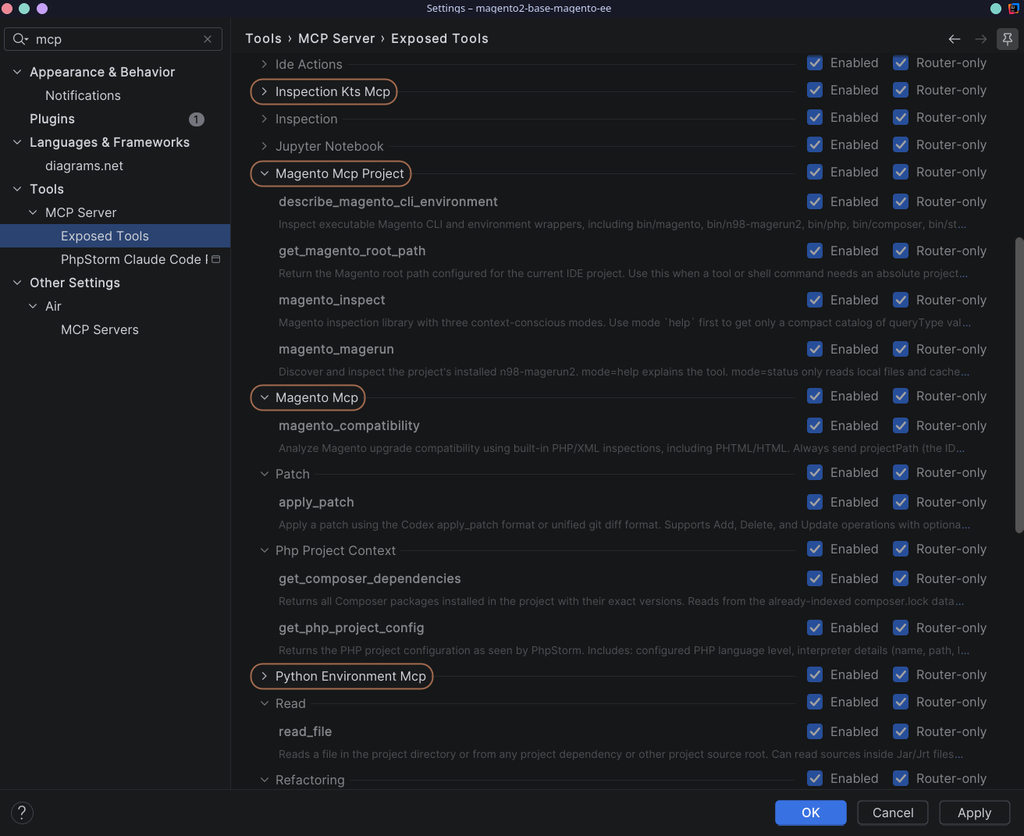
The plugin exposes an MCP tool called describe_magento_cli_environment. Instead of guessing, an AI agent can:
- Discover the available CLI wrappers in your project
- Identify the preferred execution environment, including container-based setups like ddev, Warden or Docker Magento
- Get the correct command and working directory before it executes anything
Think of it as GPS for the LLM: it finds the right route through your project instead of driving around until something works.
n98-magerun2 Integration
The second tool is magento_magerun. It lets AI agents discover the n98-magerun2 commands that are actually installed in your environment, including custom commands from your project or modules, and inspect their arguments and options.
That matters more than it sounds. An LLM’s training data knows the standard command set from some point in the past. It doesn’t know about the command your team wrote last month, or which options changed in the version you are running. With magento_magerun, the agent reads the real command list from your installation instead of hallucinating one.
Custom Wrapper Scripts
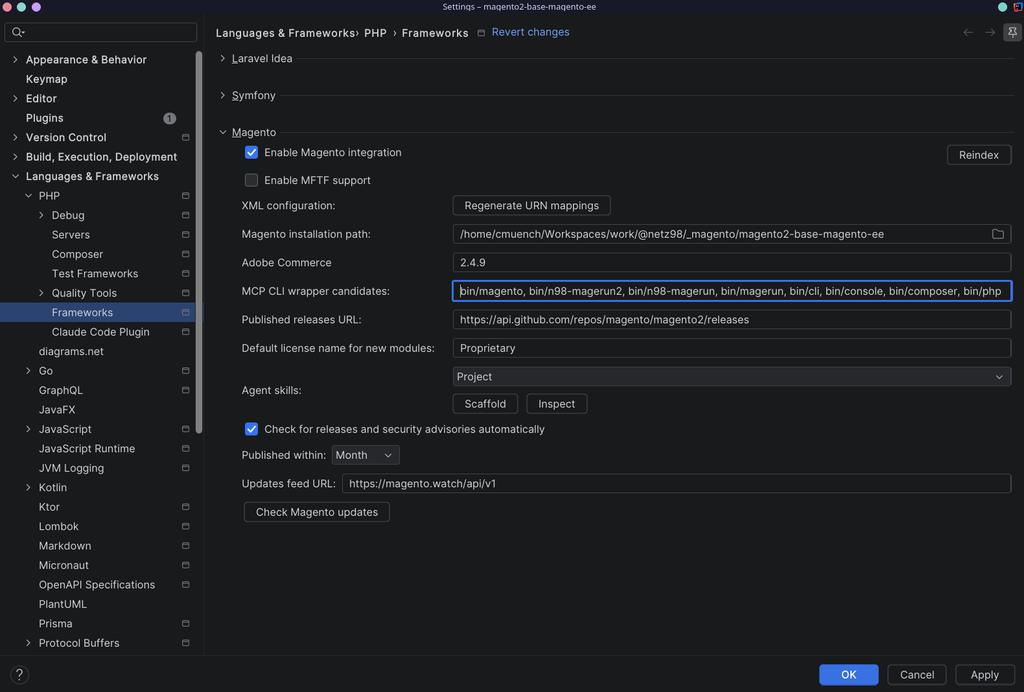
Your project uses its own naming? You can register additional scripts as MCP CLI wrapper candidates in the Magento plugin settings.
The split of responsibilities is simple: the plugin discovers the correct execution path, your AI assistant uses it to run commands.
Why Not Just Use AGENTS.md or Agent Skills?
You absolutely can. Files like AGENTS.md, CLAUDE.md or dedicated agent skills can describe how commands should be executed. They do have limitations, though:
- Context: Instructions can be overlooked or lose priority as a conversation grows and the context gets compressed.
- Maintenance: Static instructions get outdated when the project environment changes.
- Reliability: Natural-language instructions don’t verify which scripts actually exist.
Deterministic MCP tools take a different approach: they discover the actual environment on demand instead of relying on remembered instructions.
Both approaches complement each other. A skill can tell the agent to call the MCP discovery tool first, and the tool delivers current, project-specific facts.
Connect Claude Code or Codex
The Magento plugin integrates with the built-in JetBrains MCP Server. Connecting your AI assistant takes a few steps:
- Open your Magento project in PhpStorm or another supported JetBrains IDE.
- Go to Settings → Tools → MCP Server.
- Enable the MCP Server.
- Under Clients Auto-Configuration, click Auto-Configure for Claude Code or Codex.
- Restart your AI assistant so it discovers the new tools.
You can also configure clients at project level or copy the MCP configuration manually. For details, see the JetBrains MCP Server documentation.
In Practice
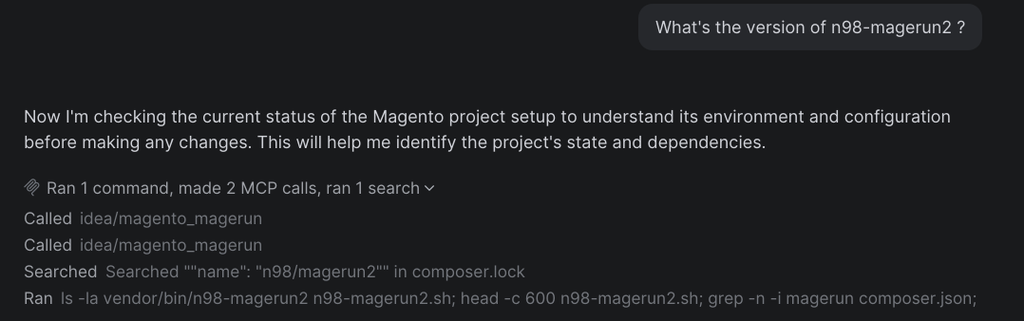
A real example: the task was to disable the Flat Rate shipping method. After making the code changes, the very first thing the agent did was ask the MCP server how to run CLI commands in this project. It got the correct wrapper and working directory back, ran the commands, and moved on. No trial and error, no expensive guesses, no failed php bin/magento calls against a host without Magento.
The Benefit
Your AI assistant adapts to your project’s actual environment instead of assuming every Magento installation works the same way. That means fewer failed commands, less manual configuration, and no need to repeatedly explain your Docker or remote setup.
Credits
A big thank you to Vitalii Boiko, who built the n98-magerun2 integration in the plugin, Without his work, the Magento community would be missing one of its most important IDE tools, and now our AI agents benefit from it too.
Try It
Update the Magento PhpStorm plugin, enable the MCP server, and let your agent find its own way through your project. If you have ideas for further integration with n98-magerun2, let us know in the comments or open an issue on GitHub.
0 Comments